
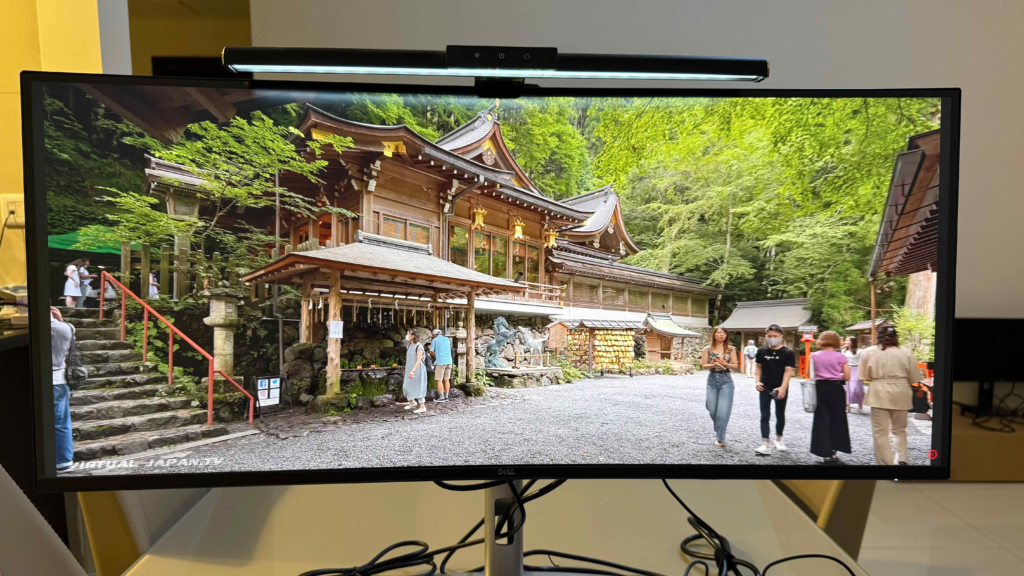
It was time to purchase my first ultrawide monitor. Had been thinking about it for a long while and I thought only needed two factors to consider – size and budget. I was firm on the size, a 34 inch after considering my available desk space. When it was time to make the move, I was surprised by the plethora of options to consider.
I realised that not all 34-inch ultrawide monitors are the same. Some are built for office productivity, some for gaming, some for creative work, and some try to do a bit of everything. The trick is to know what matters before you buy. Here is a layperson’s guide that I pulled together after my experience, hopefully to help others.
Curvature
Most 34-inch ultrawide monitors are curved, and for good reason. Because the screen is so wide, the edges can feel far away on a flat panel. A gentle curve brings the sides slightly closer to your field of view, making the screen easier to scan and more comfortable for long work sessions.
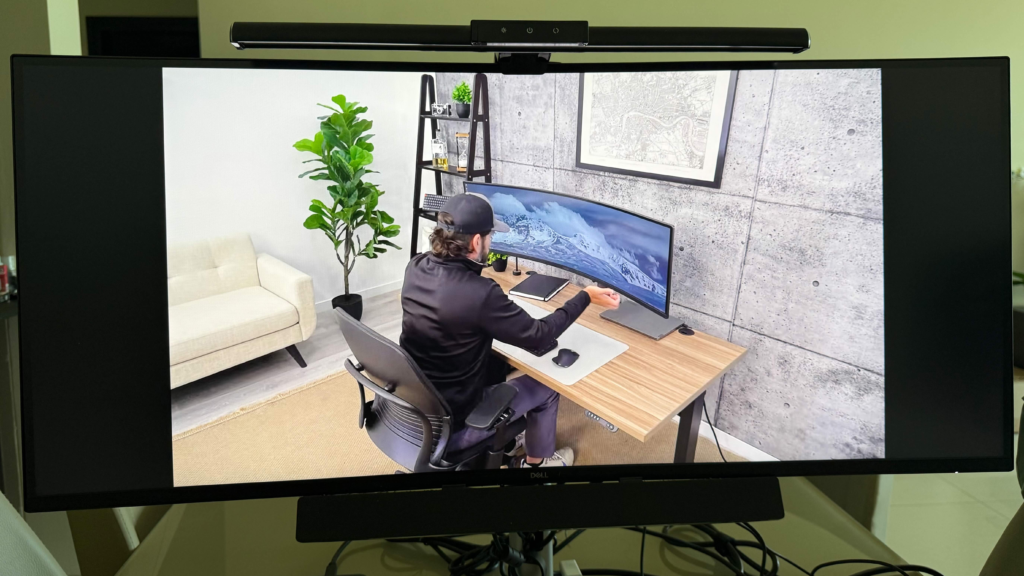
Curvature is usually shown as a number such as 3800R, 2500R 1800R, 1500R, or 1000R. The lower the number, the stronger the curve. For office work, a 3800R to 1800R curves are usually comfortable and not too aggressive. There is also less distortion at the ends. A 1000R curve is more aggressive and immersive. Suitable for gaming, but some people find it a little too dramatic for document work.
If you work mainly with spreadsheets, emails, dashboards, presentations, and browser tabs, a moderately curved of 1500R or 1800R 34-inch ultrawide is usually the safest choice. If you do design work where straight lines are important, such as architecture, layout design, or detailed photo editing, you may prefer a flatter screen or a very gentle curve such as 3800R.
Display panel types
The panel type affects colour, contrast, viewing angles, and response time.
IPS panels are popular for productivity and creative work because they usually offer good colour accuracy and wide viewing angles. They are a safe choice if you want a monitor for office work, content creation, and general use.
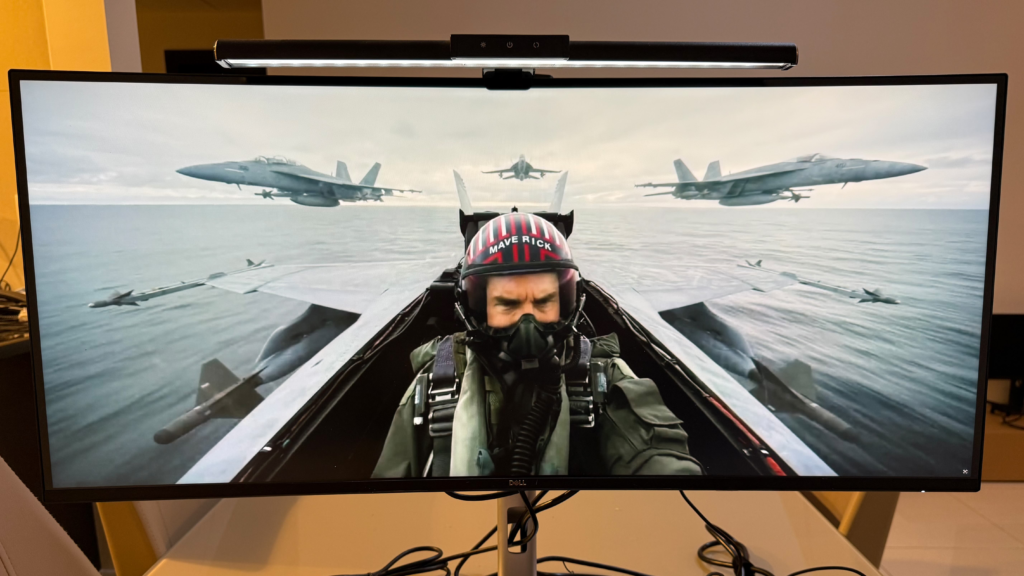
VA panels often provide better contrast, meaning deeper blacks and richer dark scenes. They can be excellent for movies and immersive use, though some may show motion smearing in fast-moving content. 3000 : 1 and higher is the starting point for the contrast ratio.
OLED panels offer outstanding contrast, deep blacks, fast response times, and beautiful colours. They are excellent for gaming and media, but they are expensive. They may require some care to reduce the risk of burn-in if static elements remain on screen for very long periods.
Most consumers will go for either IPS or VA for affordability. IPS (in-plane switching) for better colour accuracy for productivity and photo editing and usually more expensive than VA.
Resolution
When buying a 34-inch ultrawide, avoid focusing only on the physical size. Resolution is just as important. The ideal resolution for most people is 3440 × 1440. It gives you a sharp image, plenty of workspace, and a comfortable pixel density.
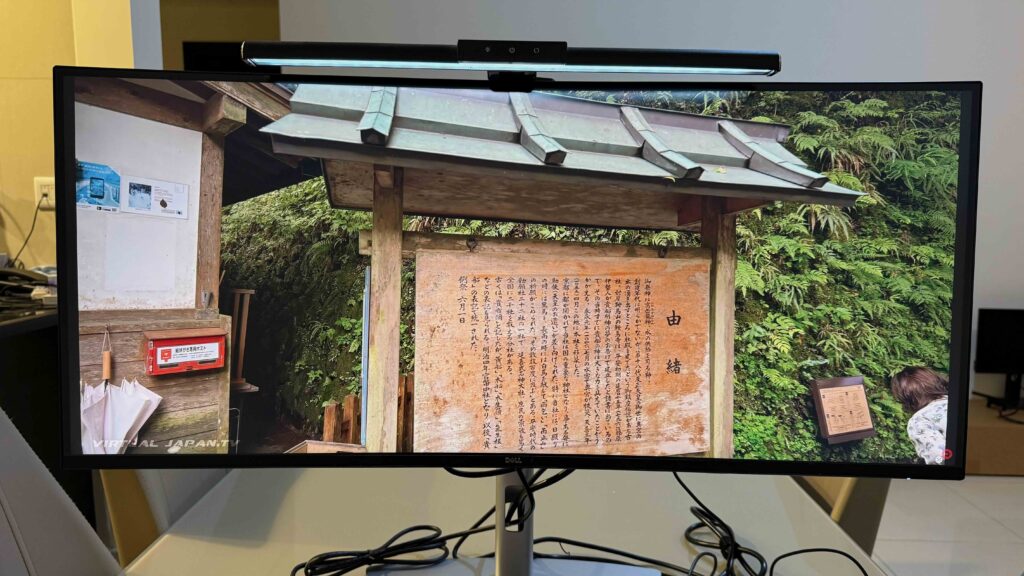
Some cheaper ultrawide monitors come with 2560 × 1080 resolution. While these can still be useful, the image may look less sharp on a 34-inch screen. Text can appear larger and slightly softer, which may not be ideal if you spend the day reading reports, reviewing documents, or working in Excel. I would avoid it.
The 3440 × 1440 is worth the price. It is the better long-term option and the one most people will be happier with after the initial novelty of the big screen wears off.
For those who want to emulate the squareness and height of the conventional 16:9 monitors to work on codes and documents with sharper text, consider an ultrawide with 5120 x 2160 resolution. This however comes with a steep increase in price.
Refresh rate and respond times
Refresh rate and respond times are important for gamers and movie buffs. 144 Hz and below 2ms are starting point for serious gamers and prices rise steeply. 60 to 120 Hz and a respond time of 5 ms are fine with average users who use the monitors for both gaming and work.
Refresh rate refers to how many times per second the screen updates. A standard office monitor is usually 60Hz. Many modern ultrawides offer 100Hz, 120Hz, 144Hz, or even higher.
For everyday office work, 60Hz is usable, but 100Hz or above feels smoother. Scrolling through long documents, moving windows around, and navigating dashboards can feel more fluid. If you also play games, a higher refresh rate becomes much more important.
For a balanced monitor, look for at least 100Hz. If gaming is important to you, 144Hz or higher is worth considering. Just remember that higher refresh rates may require a capable graphics card, especially at 3440 × 1440 resolution.
Ergonomics and connectivity
A good monitor should make your desk easier to use, not more complicated. Ideally the monitor should be able to adjust height, tilt and swivel.
At a minimum you must have the following trifecta of ports, HDMI, DisplayPort and the USB-C upstream port that carry video, data, and power through a single cable. This is especially useful if you want a clean desk and quick laptop docking.
Gone are the days of the desk computers for me. It now laptops with my latest MacBook Air to be hooked up to the ultrawide and it only has USB C ports. So an Ultrawide with USB C port upstream port with a single cable carrying video, data and to re-charge my laptop at the same time is must.
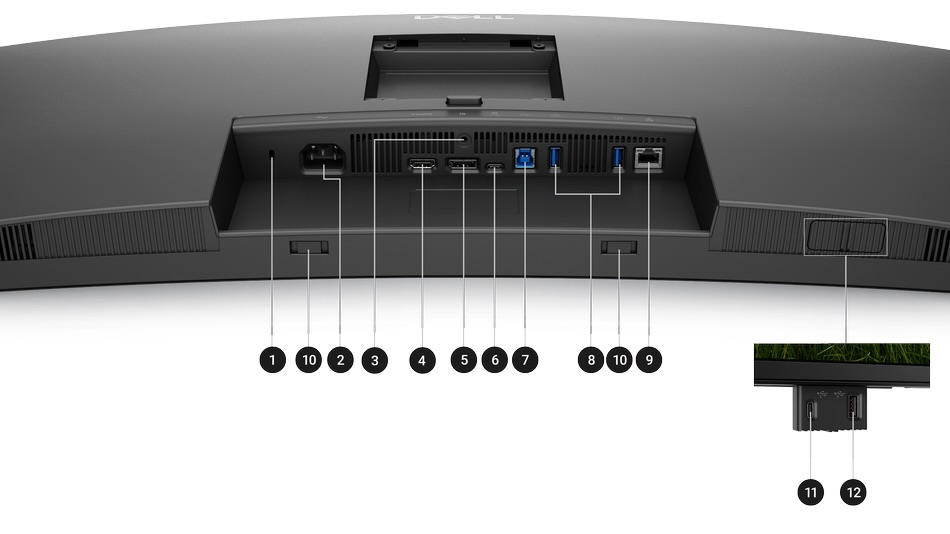
A built-in USB hub, allowing you to connect your keyboard, mouse, webcam, or headset directly to the monitor is a valuable feature. Some also offer KVM switching, which lets you use the same keyboard and mouse with two computers. This is very useful if you switch between a work laptop and a personal PC.
If you want the cleanest setup connectivity wise, consider a 34-inch ultrawide with USB-C power delivery, a USB hub, and KVM support.
Final thoughts
A 34-inch ultrawide monitor with a curve is one of the best upgrades you can make to a modern workspace. It gives you room to think, compare, write, analyse, and multitask without the clutter of two separate screens.
The best choice for most users is a 34-inch curved monitor with 3440 × 1440 resolution, at least 100Hz refresh rate, good ergonomics, and USB-C if you use a laptop.
Before buying, think carefully about how you will use it. For office productivity, prioritise resolution, comfort, and connectivity. For gaming, focus on refresh rate, response time, and adaptive sync. For creative work, pay attention to colour accuracy and panel type. And for a tidy professional desk, consider USB-C docking and a monitor arm.
Pick well, and a 34-inch ultrawide will not just make your desk look better — it will make your daily work feel smoother, more organised, and more enjoyable.